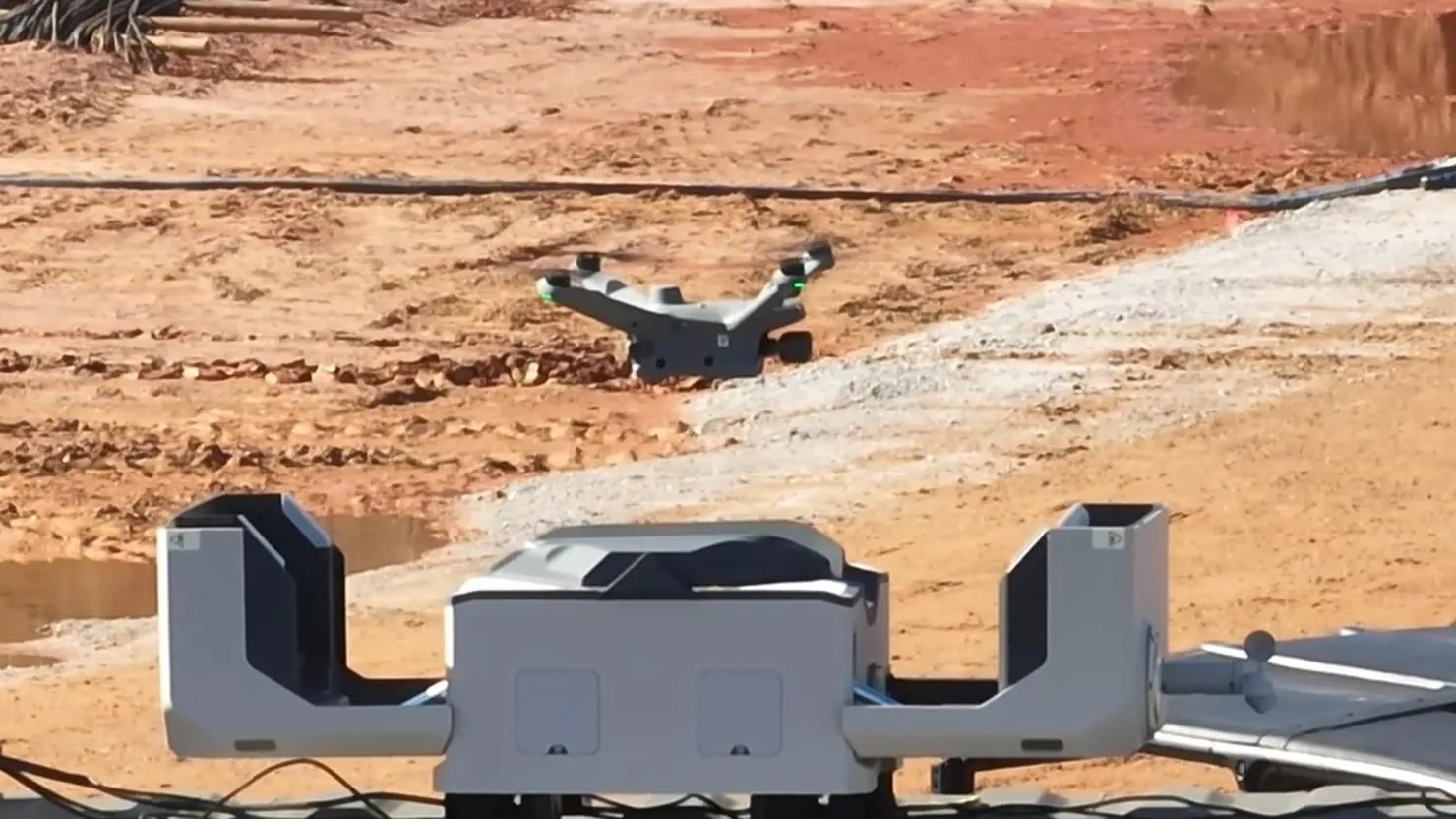

The whole concrete job, on one slab.
GleeBuild is the software half of SkyMul. It starts with a picture of your site that’s never more than a day old — then puts your panels, pours, tickets and reports on top of it.
- Every user included
- We load your drawings for you
- Opens in any browser
Every morning
See what’s really out there.
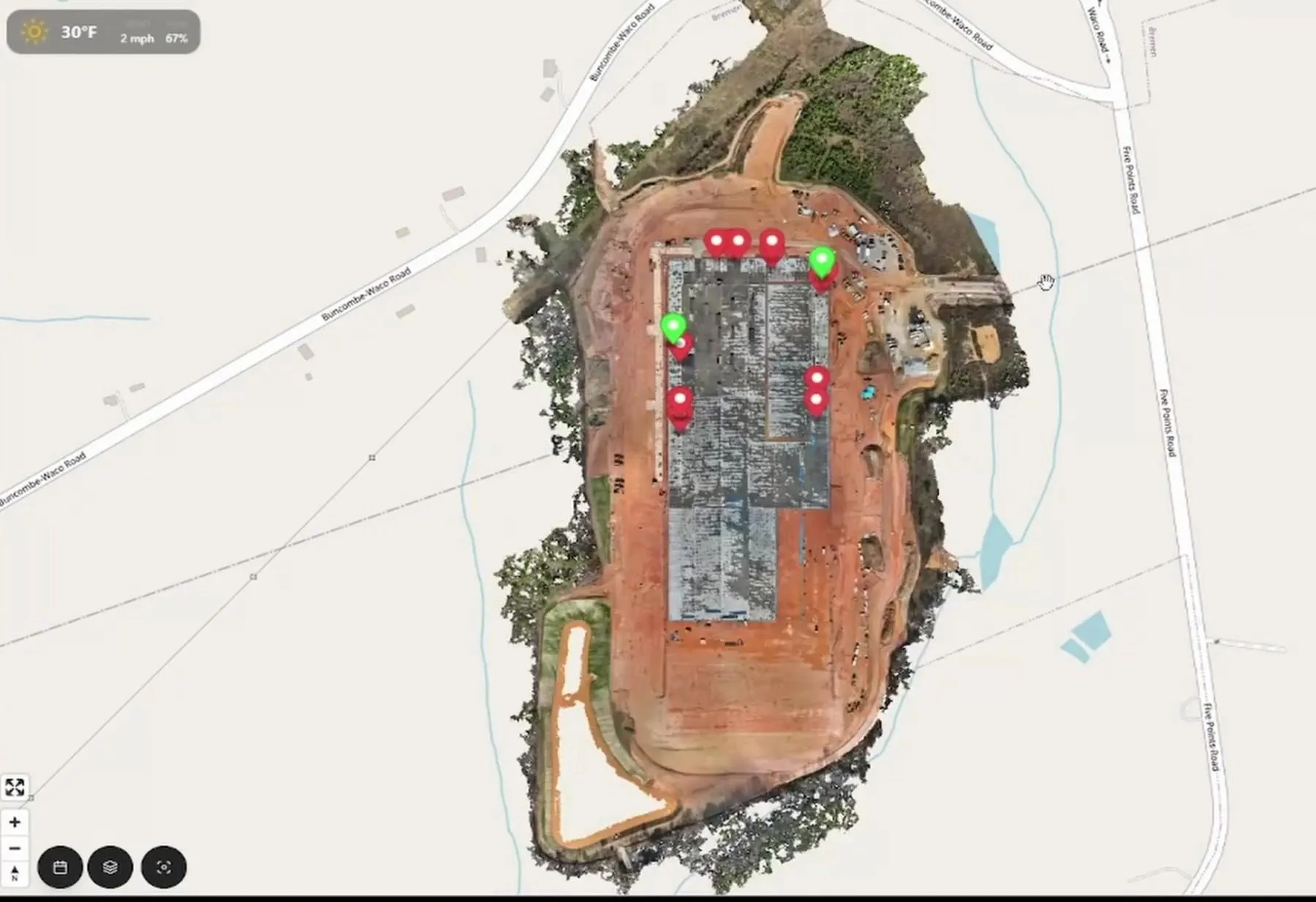
Open the job and you’re looking down at this morning’s slab. Not a rendering. Not last month’s progress photo.
- Step through the job by date
- Every flight is kept. Jump back to the day before the pour and look.
- Your drawings, on top
- Turn your CAD site plan on over the aerial, layer by layer. See where the forms are against where the lines say they should be.
- Measure it
- Distance and area, with snapping. Check an opening or a slab edge without sending anyone out.
- Elevation
- A height map of the site from the same flight, for grade and slab checks.
- Pin it
- Right-click any spot to drop an issue with a note and a photo. It goes to whoever has to fix it.
- Print it
- Export a scaled PDF sheet, up to 600 DPI, for the meeting or the record.
All job long
Know where every panel stands.
Each panel and footing is its own record, sitting where it actually is on the slab.
- Status at a glance
- Pending, in progress, complete — colored on the map and counted for you.
- Stages that match how you build
- Standard and insulated panels each have their own stages.
- Everything about one panel
- Click it: dimensions, yards, its pour, required materials, its panel-book page, its history.
- Progress by type and block
- How many footings on line F are done? How many panels in block 2 are poured? One screen.
Job progress — sample
- Footings118 of 124
- Panels formed141 of 192
- Panels poured126 of 192
- Panels standing64 of 192
The week before
Plan the pour before you call the plant.
Group work into pours, put them on a calendar and let the weather argue with you early.
- Pour sets for all of it
- Panels, slab on grade, spread and continuous footings, dock ramps, paving, sidewalks, dolly pads.
- Drag to reschedule
- Move a bar and the plan moves. Earlier versions of the plan are kept.
- Weather on the calendar
- Set your own limits. Days over them are flagged before you commit trucks and a pump.
- Prep and no-pour days
- Forming and rebar time shows ahead of each pour. Blocked days stay blocked.
- Draw the flatwork
- Sketch slab, paving and ramps over the site plan, slice them into each day’s pour, and watch the square feet and cubic yards add up as you draw.
- Order what it needs
- Material orders hang off the pour they’re for, with a status from ordered to delivered.
Pour planner — sample
Sample pour schedule: five pour sets on a week calendar with a weather row. One pour set has been moved from Wednesday to Friday because of rain.
Pour day
Know where every yard went.
The ticket gets photographed once, at the truck. That’s the last time anyone types it.
- Snap the ticket
- Phone photo or PDF. PSI, volume, batch time and temperature are read off it.
- Check it against the paper
- The photo stays next to the numbers. Fix anything that was read wrong.
- Tie it to the pour
- Planned yards against ticketed yards, per pour. Split one load across panels, footings and slab.
- Evaporation warning
- Site weather plus concrete temperature gives an evaporation-rate reading for the pour — green, amber or red — using the ACI 305R method.
Concrete ticket — sample
- Supplier
- Thomas Concrete
- Mix
- 4,000 psi
- Load
- 10.0 cy
- Batched
- 6:42 am
- Concrete temp
- 74 °F
- Goes to
- Panels · Set 4
Set 4: 64 cy planned · 60 cy ticketed so far
End of day
Close out the day in five minutes.
The daily report already knows the weather, who was on site and what got poured.
- Daily reports
- Weather, manpower, activities, equipment and issues. Pre-filled, reviewed, approved, printed.
- Tomorrow’s worklist
- Open findings and issues, each pinned to its spot, each tracked until someone closes it.
- Tasks
- A simple board for the things that aren’t concrete. Recurring ones repeat on their own.
- Productivity
- Manpower, cumulative yards and panel progress by day — the charts for the Monday meeting.
Tomorrow’s worklist — sample
- Pours Thu
P-06 · Embed plate 5 in. east of drawing
Pinned on today’s aerial
- Pours Thu
P-15 · Door blockout 3 in. too narrow
Pinned on today’s aerial
- Pours Fri
F-22 · Anchor bolts rotated 90°
Pinned on today’s aerial
- Fixed 7:40 am
P-03 · Reveal strip missing, east edge
Pinned on today’s aerial
One job. Everybody looking at the same thing.
The office
Runs the job from a browser. Nothing to install.
The super
A phone app with three jobs: photo, ticket, task.
The trailer
A wall-screen view of progress, pours and weather.
The owner
A read-only seat. They look instead of calling.
Ten roles, from owner to foreman to guest, decide who can change what. The menu only shows people what they’re allowed to open — so the foreman’s screen is short.
How to start
One job. Four months. See what it catches.
Don’t roll anything out company-wide. Pick one job that’s about to start forming. We set up, fly it every day and review it with you every month. If it doesn’t pay for itself in rework you didn’t do, don’t take it to the next job.
- 1
Site walk
We look at the job with you and your drawings. You get a written quote.
- 2
The Nest lands
One forklift lift onto your conex. About 30 minutes. No trades.
- 3
Live in 3–5 days
Targets set, drawings loaded, flight plan cleared. Daily flights start.
- 4
Monthly review
We sit down with your team: what was caught, what it saved, what’s next.
- No drone or pilot to hire
- No power or internet needed
- Every user included
Buried is final.
Look first.
Your next job has a few thousand things to get right before the trucks show up. Let us check them with you. Start with one job.
- Reply within one business day
- Written quote before you commit